
PT
Suporte Global do VMware Cloud Foundation 9 – Clarificar e ajudar nos Caminhos para a Adopção

ENG
Global Support’s VMware Cloud Foundation 9 – Clarify and help to find paths to Adoption

PT
Suporte Global do VMware Cloud Foundation 9 – Clarificar e ajudar nos Caminhos para a Adopção
ENG
Global Support’s VMware Cloud Foundation 9 – Clarify and help to find paths to Adoption
PT
A arquitetura do VMware Cloud Foundation (VCF) inclui muitas das novas funcionalidades introduzidas no VCF 9.
Serve como referência e para compreensão, faça o download aqui –>https://www.vmware.com/docs/vmware-cloud-foundation-architecture-poster
EN
The VMware Cloud Foundation (VCF) Architecture poster includes many of the new advancements introduced with the release of VCF 9.
The poster serves as a reference for understanding, download it here –> https://www.vmware.com/docs/vmware-cloud-foundation-architecture-poster
PT
Uma visão geral abrangente das formas de atualização mais comuns para migrar do vSphere 8.x e VCF 5.x para o VCF 9.0. Nao percam o video abaixo,
EN
An comprehensive overview of the common upgrade paths for upgrading from vSphere 8.x and VCF 5.x to VCF 9.0. Please see the bellow video,
PT
No video abaixo vamos ter uma visão geral do processo de actualização de vSphere 8.x que nao tem o VMware Aria Operations para VCF 9.0 Fleet,
ENG
On the below video we will have an overview of the upgrade path for upgrading a vSphere 8.x environment that is not running Aria Operations to a VCF 9.0 Fleet,
PT
Não sei se alguma vez já se derem com este tipo de mensagem, ‘Password expired’, quando fazem login no SHD UI com o user ‘shd-admin’…comigo aconteceu recentemente e decidi partilhar a minha solução:

Depois de bloquear o user root da appliance após 4 tentativas 😊 eis os meus 3 desafios para conseguir para ter acesso novamente a esta fantástica solução de recolha, analise e recomendação para alguns casos de uso…(PSODs, firmware, etc)
1º Passo:
Abrir a consola da VM e efectuar ‘Restart Guest OS’ e clicar na tecla ‘e’ para chegarmos ao menu semelhante ao abaixo,

2º Passo
Escrever ‘’rw init=/bin/bash’’ conforme nos mostram as letras dentro da caixa verde na imagem acima.
3º Passo
Clicar em F10
4º Passo
Escrever ‘’passwd’’ na linha de comando como sinalizado a verde na imagem abaixo

5º passo
Alterar a password

6º Passo
Desbloquear a password do user root (como tinha dito já a tinha bloqueado após 4 tentativas) com o seguinte comando:
‘pam_tally2 –user root’ – para ver se esta bloqueada
‘pam_tally2 –user root –reset’ – para desbloquear
‘pam_tally2 –user root’ – para verificar se ficou desbloqueada
De seguida, facam restart ao servidor com o comando reboot -f

7º passo
Apos a appliance estar disponivel de pois do restart, já poderemos fazer login com o user root e efectuar um reset password do user shd-admin.
Com o comando ‘shd-config resetadmin’

8º passo
Se soubermos a password antiga, poderemos coloca-la e fazer o reset, senão poderemos so clicar na tecla ‘Enter’ e confirmar com ‘YES’, conforme quadro abaixo,

9º passo
Após alterarmos a password de acordo com as regras de segurança abaixo definidas, abaixo recebemos a mensagem que – Password change for “shd-admin” completed. E já poderemos ‘exit’ na promt para logoff

10º passo
Voltar a fazer login com sucesso.
Espero ter ajudado!
vHug
ENG
If you ever come across with this type of message , ‘Password expired’, when logging into SHD UI with ‘shd-admin’ user…just happen with me recently and i wanted to share all the challenges and findings i came across :
After blocking the root user after 4 attempts (it happens 😊) here are my 3 challenges to gain access again to this fantastic to collect, analyze and recommend solution for some use cases…(PSODs, firmware, etc)
1º Step:
Open VM console and do ‘Restart Guest OS’ click ‘e’ on the keyboard to get to above menu,
2º Step
just add ‘’rw init=/bin/bash’’ like the image below.
3º Step
Click ‘F10‘
4º Step
Just write ‘’passwd’’ on command line like shown in picture above,
5º Step
Change password
6º Step
Unlock root user password (Like i had mentioned before i have blocked after 4 attemps) and do as follows:
‘pam_tally2 –user root’ – to check if its blocked
‘pam_tally2 –user root –reset’ – to unlock
‘pam_tally2 –user root’ – to check its unlocked
Next, just do a appliance restart with the command ‘reboot -f’
7º Step
After restart, we can make login with root account and reset to user shd-admin.
with the command ‘shd-config resetadmin’
8º Step
If you know the current password, just add it and make the reset. If you do not have the current password just click ‘Enter’ and confirm with a ‘YES’, like image below,
9º Step
After changing the password in accordance with the security rules defined below, we will receive the message – Password change for “shd-admin” completed. And we can now ‘exit’ to logoff
10º Step
Now you can login with sucess.
Hope this can help you!
vHug
PT
Neste post vou mostrar como poderemos efectuar o upgrade da versão 3.5.0 para 4.0.0 do Skyline Health Diagnostics.
Conforme escrevi no meu post anterior, esta nova versão que teve o GA a 15/06/2023, traz novas funcionalidades e eu quero poder usar algumas dessas funcionalidades ou todas mesmo.
No meu laboratório em casa, foi muito simples de completar o upgrade com sucesso, partilho abaixo os passos efectuados:
Efectuar login na UI:

Após o login consegui verificar que tenho updates pendentes conforme nos mostra a imagem abaixo

Navegar até a tab ‘SETTINGS’, depois clicar em ‘Upgrade & History’ e clicar em ‘Download Updates’

De seguida poderemos confirmar que o download esta a ser efectuado,

Após o download dos updates a UI mostra-nos a mensagem ‘Successfully downloaded version 4.0.0. Will be installed on next OS Restart’

Efectuar reinicio ao SO da appliance e esperar cerca de 10m para que seja efectuado o update e arranquem todos os serviços (Se nos tentarmos efectuar login antes do tempo que vos indiquei, poderemos encontrar o erro abaixo

Após os serviços estarem disponíveis,

Efectuar login na UI
E verificar que o update esta feito com sucesso,

Poderemos verificar no histórico igualmente o sucesso do update e informação mais detalhada,

Espero ter ajudado! 😊
ENG
In this post i will show you how we can do the update from 3.5.0 to 4.0.0 version of Skyline Health Diagnostics solution.
Like I have already wrote on my previous post, this new version on Skyline Health Diagnostics that had its GA on 15/06/2023, have new functionalities and I do want to use some or all.
In my home lab, it was a very straight forward process to complete the update with success, please see above all the steps:
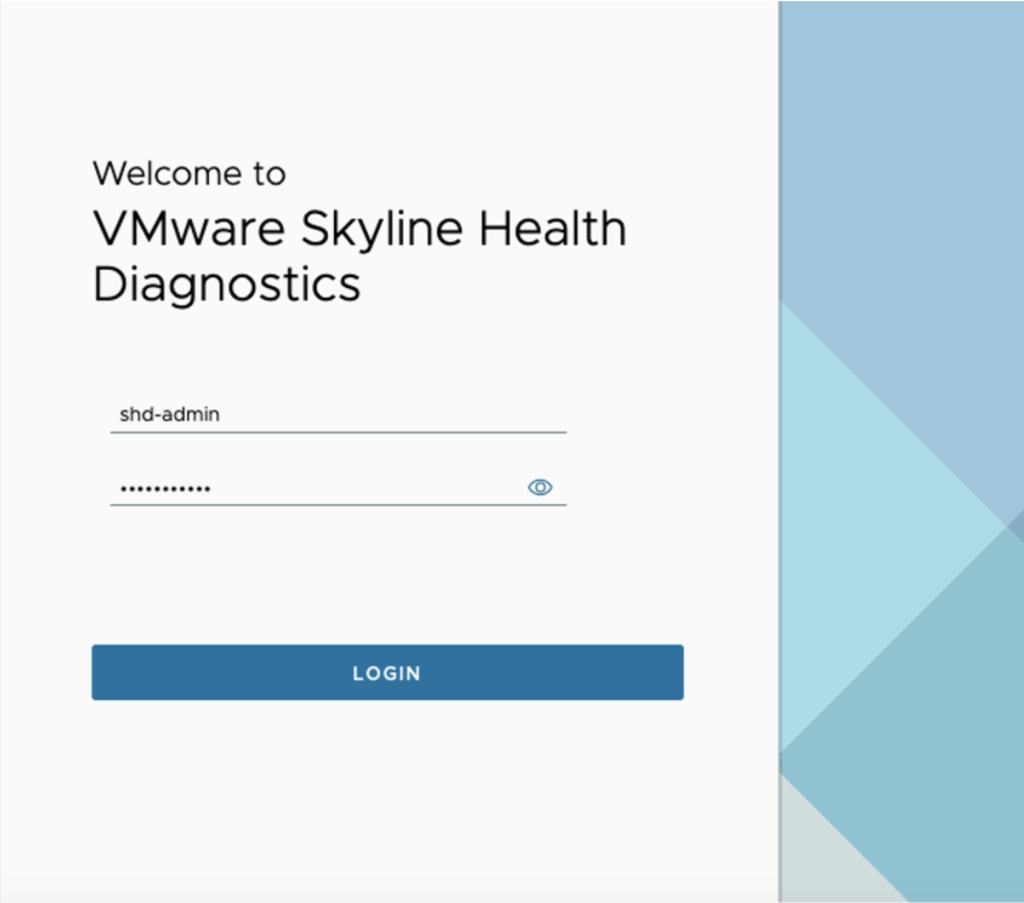
After the login i could verify that I have new updates, like we can see in the image below:
Navigate to the tab ‘SETTINGS’, then click in ‘Upgrade & History’ and then click in ‘Download Updates’
After we click in ‘Download Updates’ we can see that the download is in progress,
After the download the UI will show the message ‘Successfully downloaded version 4.0.0. Will be installed on next OS Restart’
After reboot wait more or less 10m (if you try to login its normal that you will get the error above)
Because the appliance is starting services, just wait 😊
login in the UI
And verify that the update was done with success,
We could see in ‘Upgrade & History’ its success and more detailed information, like the status, description, time taken, source and target versions, etc:

Hope it helps! 😊

PT
A soluçāo VMware Skyline Health Diagnostics 4.0 esta disponível desde 15/06/2023 e tem imensas melhorias, descritas abaixo:
Link para o Blog da VMware sobre esta release:
https://blogs.vmware.com/vsphere/2023/06/announcing-vmware-skyline-health-diagnostics-4-0.html
Link para efectuarem o download da appliance:
https://customerconnect.vmware.com/downloads/get-download?downloadGroup=SKYLINE_HD_VSPHERE
Link para as release notes:
Link para a documentaçāo da soluçāo (requisitos, instalaçāo, configuraçāo entre outros)
ENG
VMware Skyline Health Diagnostics 4.0 is available from 15/06/2023 with great enhancements such as:
Check out here VMware blog info:
https://blogs.vmware.com/vsphere/2023/06/announcing-vmware-skyline-health-diagnostics-4-0.html
For download the appliance:
https://customerconnect.vmware.com/downloads/get-download?downloadGroup=SKYLINE_HD_VSPHERE
Release notes:
Product Documentation (requirements, install, configure and more)

PT –
Como mencionado acima, a aplicação do programa vExpert da VMware está disponível até ao próximo dia 27 de Janeiro, sendo que os resultados serão partilhados por volta do dia 17 de Fevereiro. Para podermos efectuar a aplicação deixo abaixo o portal para o efeito,
Para quem ainda tem algumas dúvidas sobre este programa, partilho abaixo toda a informação do mesmo e também uma sessao pública que irá acontecer dia 11 de Janeiro pelas 9h (PST), pelo que podem efectuar o registo na sessão zoom,
https://blogs.vmware.com/vexpert/2023/01/01/apply-2023/
EN –
As mentioned above in the subject VMware vExpert Program will be open until January 27th and the results will be made public around February 17th. To apply to the program, please use the link below,
For those who have some questions or doubts about the program, feel free to open the link below that contains all information and even a Q&A Zoom session that is scheduled to January 11th at 9am (PST),

PT
Muitas perguntas surgiram ate ao momento sobre ‘onde posso encontrar o vCenter Converter?’ ou ‘O que e que aconteceu com o vCenter Converter?’ Como sabem a ultima versāo foi a 6.2.0.1 a 22/05/2018 e removido no inicio de Fevereiro de 2022 por nao cumprir os altos padroes de segurança e estabilidade da VMware.
https://blogs.vmware.com/vsphere/2022/02/vcenter-converter-unavailable-for-download.html
Bem tenho que vos informar que neste momento a ser preparado um formulário para o Programa Beta da versāo Beta do novo vCenter Converter, para poderem usar e dar feedback, com propostas de melhoria, novas funcionalidades, etc. Assim que dísponivel faço update a este post! Nao existem ainda muitas informacões mas para seguirem as existentes e disponíveis até ao momento sigam o post abaixo,
https://williamlam.com/2022/09/new-vcenter-converter-beta.html
Como mencionei, aqui esta a informacao de como ter acesso a versao Beta do vCenter Converter: Se ja tem acesso a Comunidade Beta apenas terá de aceder aqui –> vCenter Convert Beta Community se ainda nāo é membro, terá de se registrar enviando um email para vc-converter-beta@vmware.com e em resposta receberá um link para efectuar o registo e fazer o download do vCenter Converter.
Abaixo seguem algumas das release notes desta versāo Beta:
EN
Many questions came about ‘Where can i find vCenter Converter? or ‘Whats going on with vCenter Converter?’ Has you may already know the last version was 6.2.0.1 released in 22/05/2018 and removed in February 2022 because it does not comply with VMware’s high standards for security and stability.
https://blogs.vmware.com/vsphere/2022/02/vcenter-converter-unavailable-for-download.html
Well let me inform you that at the moment its being prepared a sign-up form for Beta program for vCenter Converter, the feedback will be valued by the product team to enhance the product. As soon as i get more information on this i will update this post! There is not a lot of information at the moment but the existing you may follow in the link bellow,
https://williamlam.com/2022/09/new-vcenter-converter-beta.html
Has mentioned before, here you have the information on how to access to vCenter Converter Beta version: If you already have access to Beta Community you just have to click here –> vCenter Convert Beta Community If you are not yet a member you need to send an email to vc-converter-beta@vmware.com and you will get back a link register and download vCenter Converter.
Please see above some of the release notes in this Beta version:
PT
Com este post deixo aqui uma recomendaçāo para se efectuar o upgrade do collector do Skyline para a versāo 3.2.
Podem ver todas as novas funcionalidades, correccões e novos findings desta nova versāo no link abaixo,
https://blogs.vmware.com/kb/2022/08/vmware-skyline-advisor-pro-whats-new-august-2022.html
Como o blog acima menciona,
“We strongly recommend updating your Skyline Collector to v3.2 to take advantage of all the new features, as well as upcoming features in subsequent releases. If you have the Auto-Upgrade feature enabled, note that we have detected an issue with Auto-Upgrade when running Skyline Collector version 3.1.0.0. Any Skyline Collector running v3.1.0.0 will not perform automatic upgrade to v3.2. We have identified a resolution for the issue in KB89230. Manual upgrades will complete without incident, and all Skyline Collector versions before and future versions we release after v.3.1.0.0 are not impacted by this issue and should auto upgrade as expected. All your Collectors must be on v3.0 or above to access Skyline Advisor Pro, which is smarter, easier and 12X faster than Skyline Advisor”
Os upgrades que fiz foram executados sem nenhum problema e o processo parece-me bastante intuitivo, contudo deixo aqui alguns prints de como executar o mesmo:
1 – Login na UI do Collector
Assim que fizerem login, vāo verificar uma barra de cor laranja com a opcāo para o upgrade,

2 – Clicar em ‘UPGRADE’
3 – Aceitar o EULA, (Clicar em ‘AGREE’)

4 – Clicar “UPGRADE”

Depois poderemos ver o upgrade a ser executado, vai levar cerca de 5 a 10 minutos

Quando terminar o processo, teremos de efectuar novamente o login, esperar cerca de 15 minutos para que possamos ver todos os produtos adicionados em comunicaçāo como será o seu estado normal.

E é tudo , espero que vos ajude!
EN
With this post i would like to recommend the Skyline Collector upgrade to 3.2 version
Please check all new enhancements and functions in newest version in the link below,
https://blogs.vmware.com/kb/2022/08/vmware-skyline-advisor-pro-whats-new-august-2022.html
As our previous blog mention,
“We strongly recommend updating your Skyline Collector to v3.2 to take advantage of all the new features, as well as upcoming features in subsequent releases. If you have the Auto-Upgrade feature enabled, note that we have detected an issue with Auto-Upgrade when running Skyline Collector version 3.1.0.0. Any Skyline Collector running v3.1.0.0 will not perform automatic upgrade to v3.2. We have identified a resolution for the issue in KB89230. Manual upgrades will complete without incident, and all Skyline Collector versions before and future versions we release after v.3.1.0.0 are not impacted by this issue and should auto upgrade as expected. All your Collectors must be on v3.0 or above to access Skyline Advisor Pro, which is smarter, easier and 12X faster than Skyline Advisor”
I have already done it in 2 of my customers without any issue, it’s a very straight forward upgrade. Allow me to help you with that showing you how it is done:
1 – Login in Collectors UI
You will see the upgrade orange bar option for upgrade like above,
2 – Click on ‘UPGRADE’
3 – Accept the ELA, (Click ‘AGREE’)
4 – Click “UPGRADE”
Then we will see the upgrade taking place, (5/10 minutes)
When it finishes you have to login again and wait more or less 15 minutes for all collectors and endpoints to start communicating as usual.
And thats all, hope that helps!